Top 5 Adventure Lab® app tips
Adventure Lab® expands how you explore and learn about the world around you through interactive, self-guided tours and experiences.
Each Adventure is created by another Adventurer and shares a unique location, story, challenge, or educational experience. Whether you’re looking for an activity for your family, yourself, or a date, you’ll love getting outside and exploring with Adventure Lab. Keep reading for five tips on how to get started and make the most of your Adventure!
1. Understand the pins on the map
Before taking off on your outing, understand what the Explore map pins mean. The Adventure Lab® app shows Adventures with many different types of pins.
- Public Adventure
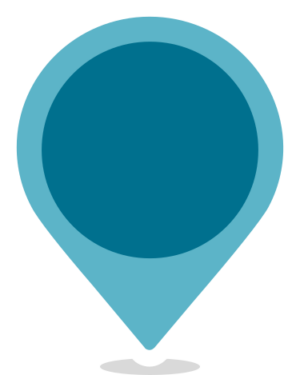
- Completed Adventure

- New within 30 days

- Sponsored Adventure
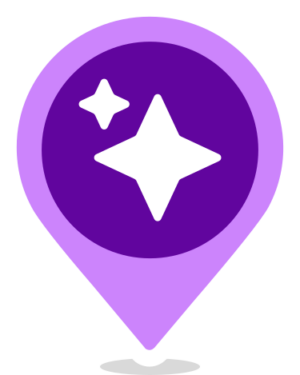
- Private or Test Adventure

- Highly recommended

2. Use the filters for the best outing
Select the filter icon at the top of the map to help narrow down the Adventures that appear on your map. This will allow you to find the best Adventure based on the criteria you’re most interested in, including:
- Highly recommended
- New within 30 days
- Completion status: completed, in progress, not started
- Estimated time
- Adventure type: sequential or nonsequential
- Themes
Themes can help you choose the best Adventure for your excursion. They help narrow down the options near you for a curated experience—like nature, history, or ‘for kids,’ to name a few.
3. Start your Adventure
Once you select the best Adventure for your outing, it’s time to begin your journey!
Select the Adventure you want to embark on and select start. Navigate to the first pin in the Adventure and select “See details” at the bottom of your screen. This gives you information about the area and prepares you for the upcoming question. When within range of the Adventure Location, the Answer button unlocks the challenge question. Once you complete that Location, you can move on to the next!
4. Check out your postcard collection


After you finish the final Location of the Adventure, the app shows a digital postcard. This postcard includes the Adventure’s cover image, a completion date, the title, the creator’s name, and a customizable stamp to personalize your Adventure experience.
You can access your “Postcard collection” in the Profile tab on the Adventure Lab app. You can easily view and share a postcard from the collection screen on other apps, including social media platforms, with just a tap.
5. View your statistics
Are you interested in seeing the statistics for all of your completed Adventures? Tap on your Profile icon and then select Statistics. The Adventure Lab app provides the following statistics:
- Completed Adventures

- In progress Adventures

- My Adventures

- Find count

- Themes

Adventure Lab Caches are included in these Geocaching.com statistics:
- Caching Chronology
- Cache Types: Lab Caches
- Caching Milestones
- The Geocaches Owned on your public profile
Whether exploring your neighborhood or experiencing a city for the first time, Adventure Lab is the perfect way to dive into the area’s culture, history, and hidden gems. Good luck on your next Adventure outing!
Have you downloaded the Adventure Lab® app and completed an Adventure? Share your most memorable Adventures in the comments, and then find your next one!